As the core of modern applications, effective database management is essential. For SQL Server, choosing the right tool can determine your productivity and operational stability. To work smarter, we’ve selected seven top tools that help developers and DBAs succeed.
Top 7 SQL Server Management Tools
You get the official free ones from Microsoft and then the commercial ones that cost money but actually get used in real work. Each one does its own thing: better productivity, performance fixes, automation.
1. dbForge tools for SQL Server
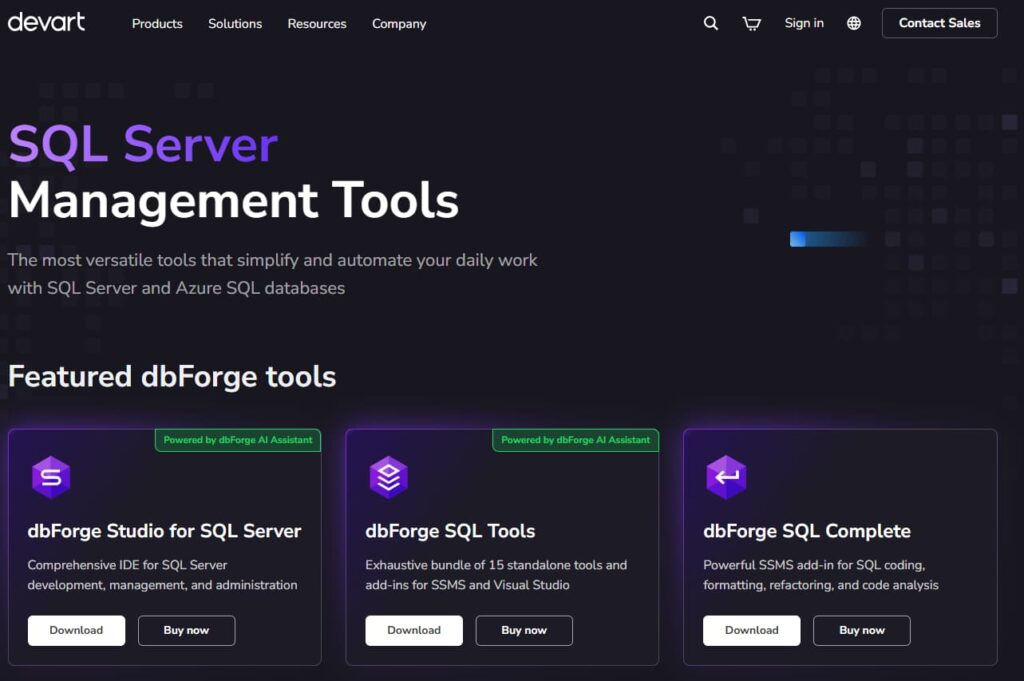
Devart’s dbForge lineup is considered one of the more complete SQL database management tools sets for SQL Server. It supports daily work with SQL Server and Azure SQL across development, administration, and management without switching between multiple applications.
Main ones: dbForge Studio for SQL Server is the full IDE. You code, manage databases, and handle admin tasks in one place. They added AI features not long ago. dbForge SQL Tools is a pack of 15 tools — some standalone, others add-ins for SSMS and Visual Studio. dbForge SQL Complete is just the SSMS add-in for writing SQL: completion, formatting, refactoring, and checking code.
What makes dbForge particularly valuable is its modular, specialized approach to different database tasks:
- Development: Query Builder and Data Generator — faster creation and testing.
- Management: Schema Compare and Data Compare — keep databases in sync across environments.
- Administration: Index Manager and Monitor — maintain performance and health.
- Automation: DevOps Automation for SQL Server — speed up and secure deployments.
The suite is unified by the dbForge AI Assistant, an AI that translates natural language into SQL. It provides a connected system for organizations that need one tool handling diverse tasks—from managing databases across platforms to inspecting detailed logs—within a single integrated ecosystem.
2. SQL Server Management Studio (SSMS)
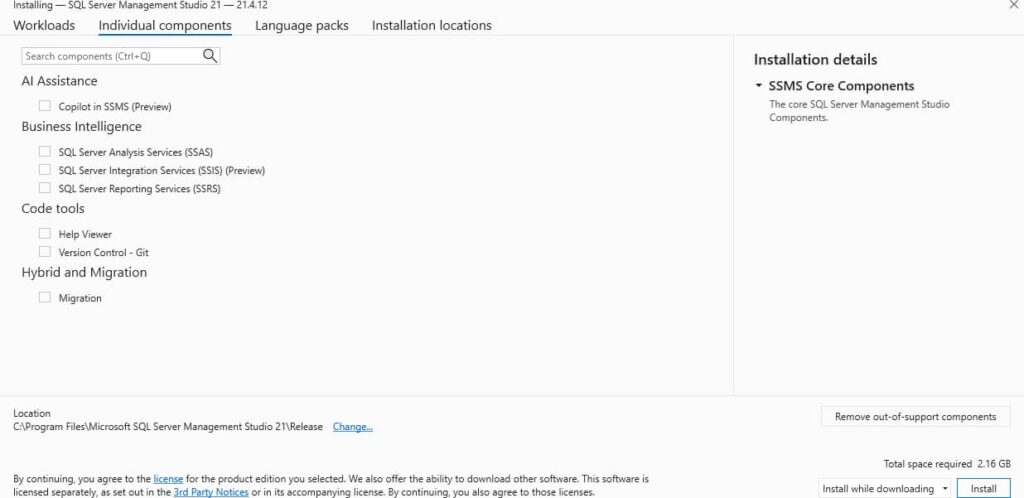
SQL Server Management Studio is the official free environment from Microsoft for working with Microsoft SQL Server and Azure SQL databases. It provides broad coverage for configuration, monitoring, and administration across SQL Server versions. Core capabilities include:
- security management;
- backup and restore;
- maintenance plan creation;
- Activity Monitor;
- Live Query Statistics;
- execution plan analysis;
- query editor with basic IntelliSense support for T-SQL development.
SSMS functions as a core platform that supports add-ins and extensions. It receives updates to stay compatible with new SQL Server and Azure features. This makes it suitable for teams that require full administrative access without licensing costs. For everyday development, it works well.
However, more advanced tasks like detailed schema comparisons or in-depth code analysis usually require specialized tools that integrate into SSMS rather than replace it.
3. Azure Data Studio
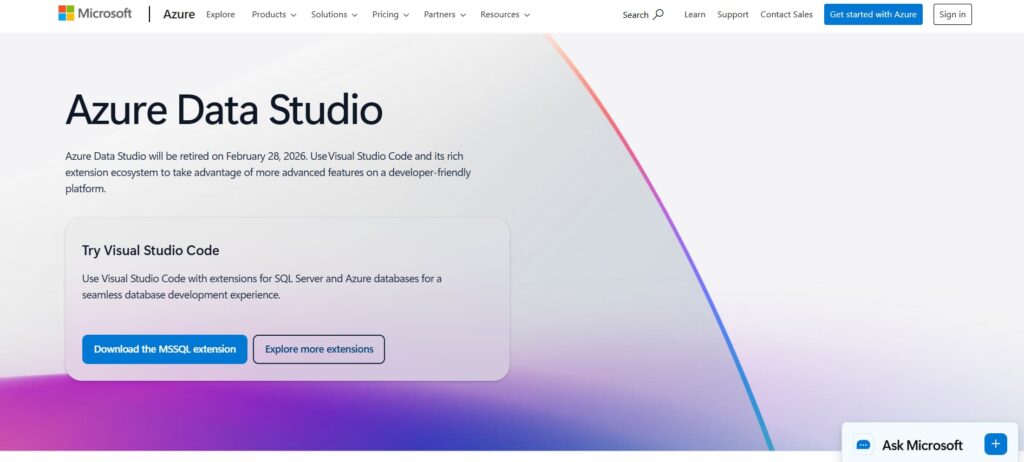
Azure Data Studio is a cross-platform tool from Microsoft for SQL Server and Azure SQL. It handles queries, development, and data exploration. Server administration isn’t the focus. Its notebook support allows SQL, charts, and markdown to exist together in a document, helpful for analysis and workflows. You can extend it via the marketplace and use its native Git integration.
Azure Data Studio is Microsoft’s cross-platform tool for working with SQL Server and Azure SQL databases. It runs on Windows, macOS, and Linux since it’s built with Electron.
Mainly used for:
- Writing and running queries
- Basic development tasks
- Light data analysis and exploration
Not suitable for heavy server administration, but its notebook is key: run SQL, see charts inline, and document with markdown. It also offers Git integration and an extensions marketplace for customization.
4. Redgate SQL Toolbelt
SQL Toolbelt from Redgate is a collection of SQL Server tools sold as one package. Covers development, deployment, monitoring, and basic admin. They integrate decently with each other and with SSMS.
You mostly end up using SQL Prompt for writing and formatting queries faster, SQL Compare and SQL Data Compare to sync schemas or data between databases, and SQL Monitor to watch your instances and get notified about issues.
The suite is built around database DevOps and team processes. SQL Source Control links schemas and static data to Git, Subversion, or TFS. That setup supports version control, CI/CD pipelines, and controlled deployments. The tools don’t fix problems automatically. They give you comparisons, visibility, and integrations for reliable releases plus ongoing monitoring.
5. ApexSQL Complete
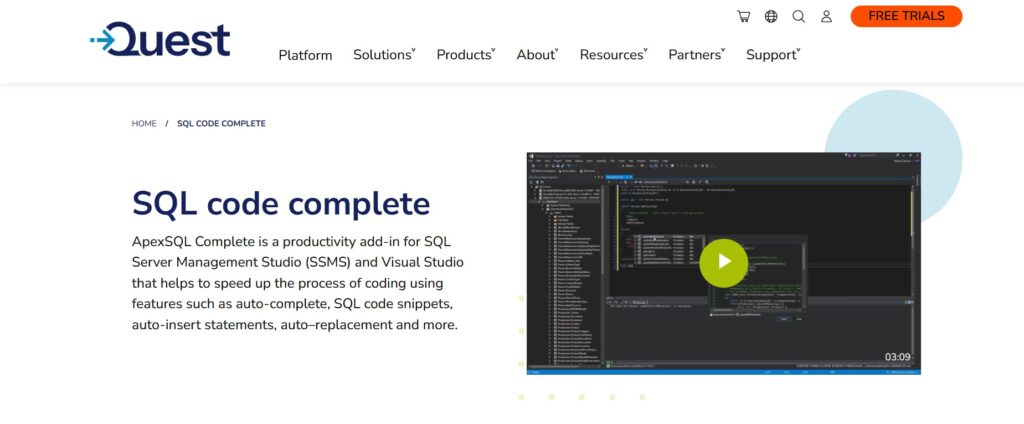
If you use SQL Server Management Studio for writing SQL, the ApexSQL Complete add-in can significantly speed up your work. It installs directly as an SSMS plugin.
Key features include intelligent autocomplete that uses your actual database schema to suggest tables, columns, and other objects as you type, reducing mistakes and manual typing. It also includes a code formatter to quickly restructure scripts according to predefined rules.
The tool supports safe refactoring operations, such as renaming database objects across multiple files, converting literal values into parameters, and moving sections of code into new stored procedures. The main advantage is that these features are integrated directly into SSMS or Visual Studio, adding functionality without disrupting your current workflow.
6. SentryOne SQL Sentry
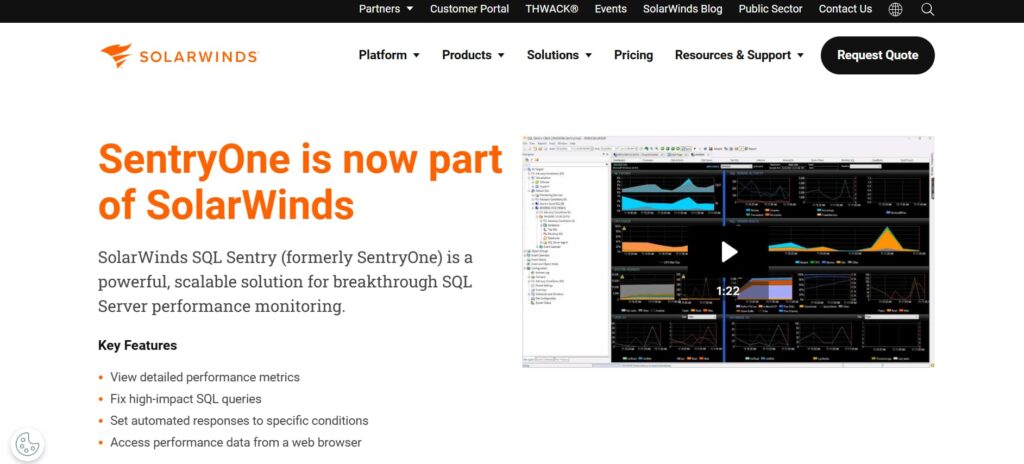
SQL Sentry is a monitoring tool for SQL Server. It pulls data from everywhere—the database itself, the Windows server, the storage system, even the VMware or Hyper-V layer. You get one dashboard with all the pieces connected. That means you can finally figure out if the slowdown is a bad query, a Windows config, or a storage bottleneck.
It displays live activity—all active queries, waits, and blocks, plus real-time CPU, RAM, and disk metrics. You can also review historical data. Select any past period to replay it and identify the exact statements that caused performance issues.
7. Idera SQL Diagnostic Manager
Idera SQL Diagnostic Manager is a monitoring tool for SQL Server environments. It relies on local agents to gather performance metrics from each server. These agents process data before sending it to a central repository, reducing network overhead. This approach helps it scale across many servers while keeping a detailed history for analysis.
It automatically detects common issues like:
- Blocking and deadlocks
- Long-running queries
- Resource bottlenecks (CPU, memory, I/O)
- Problematic configuration changes
Uses waits and I/O to show where bottlenecks occur, supports trend-based capacity planning, and focuses on performance monitoring—not compliance.
Choosing the Right Tool for Your Needs
Choosing a SQL Server tool depends on your specific job and setup. Don’t just grab the most popular one. Ask yourself these questions first.
What’s your main job?
- Database Admin (DBA): You need deep performance monitoring, alerting, and maintenance.
- Developer: Your focus is writing, tuning, and version-controlling queries and scripts.
- Analyst / Report Writer: You primarily need to explore data and build visualizations.
Where are your servers? The tool must support your environment—on-premises, in Azure (or another cloud), or a mix of both.
Who else needs it? For solo use, anything goes. For a team, you need features like shared connections, security roles, and audit trails.
What’s the real cost? Factor in licensing, training time, and ongoing support. A cheap tool that slows you down isn’t a bargain.
Think about these points to find a tool that solves your actual problems.
Conclusion
Choosing a SQL Server tool is a practical decision. It impacts daily efficiency and system reliability. There’s no single perfect tool for everyone.
The right approach is to assess your team’s specific roles, current workflows, and future requirements. Then, pick tools that integrate well, automate routine work, and can scale. Focus on usability, integration, and real value. This way, you build a toolkit that solves today’s problems and supports long-term goals.